
Color can organize an interface beautifully while quietly hiding important information from some readers. A red error outline, a green availability dot, or two similar chart lines may stop communicating when their hues become difficult to distinguish.
Free color blindness simulators help expose those dependencies before release. They provide an approximation of altered color perception, giving designers a practical reason to add labels, shapes, patterns, and other signals that do not depend on hue alone.
This selection focuses on color vision deficiency simulation, rather than palette generation or numerical contrast scoring. You will find image-based web tools, desktop filters, camera apps, and controls already built into free browsers.
Each serves a different stage of production: checking a static mockup, inspecting an interactive page, or reviewing a physical sign. Choose according to the material you need to examine, not simply the number of filters a product advertises.
Treat every simulated view as design feedback, not a literal reproduction of another person’s vision or an accessibility certificate. Algorithms, display settings, viewing conditions, and individual perception all affect the result.
Start with a realistic task, such as finding a failed payment or matching a line to its label, then ask whether that task remains clear under several simulations. Combine these free tools with feedback from people who have color vision deficiencies whenever possible.
Quick picks at a glance
| # | Resource | License | Best for |
|---|---|---|---|
| 1 | DaltonLens | Free online tool; code has separate license terms | Comparing simulation methods with adjustable deficiency severity |
| 2 | Coblis | Free browser tool; underlying HCIRN code has noncommercial terms | Quick local image checks without server uploads |
| 3 | Pilestone | Free online simulator; website terms apply | Comparing an uploaded image with its simulation |
| 4 | Color Oracle | Free; repository includes MIT license terms | Reviewing desktop artwork across different design applications |
| 5 | Sim Daltonism | Free and open source; Apache 2.0 plus algorithm-specific terms | Watching screen regions while adjusting a design |
| 6 | Chromatic Vision Simulator | Free app; App Store terms apply | Inspecting printed designs through a phone camera |
| 7 | Chrome DevTools | Free browser feature; Chrome terms apply | Checking interactive website states during front-end development |
| 8 | Firefox Developer Tools | Free browser feature; Mozilla licensing and terms apply | Reviewing color perception in Firefox page layouts |
| 9 | RGBlind | Free open-source toolkit; review repository license before redistribution | Adding red-green simulation to a development prototype |
| 10 | Toptal Colorblind Web Page Filter | Free online filter; website terms apply | Exploring filtered versions of publicly accessible webpages |
DaltonLens
Web app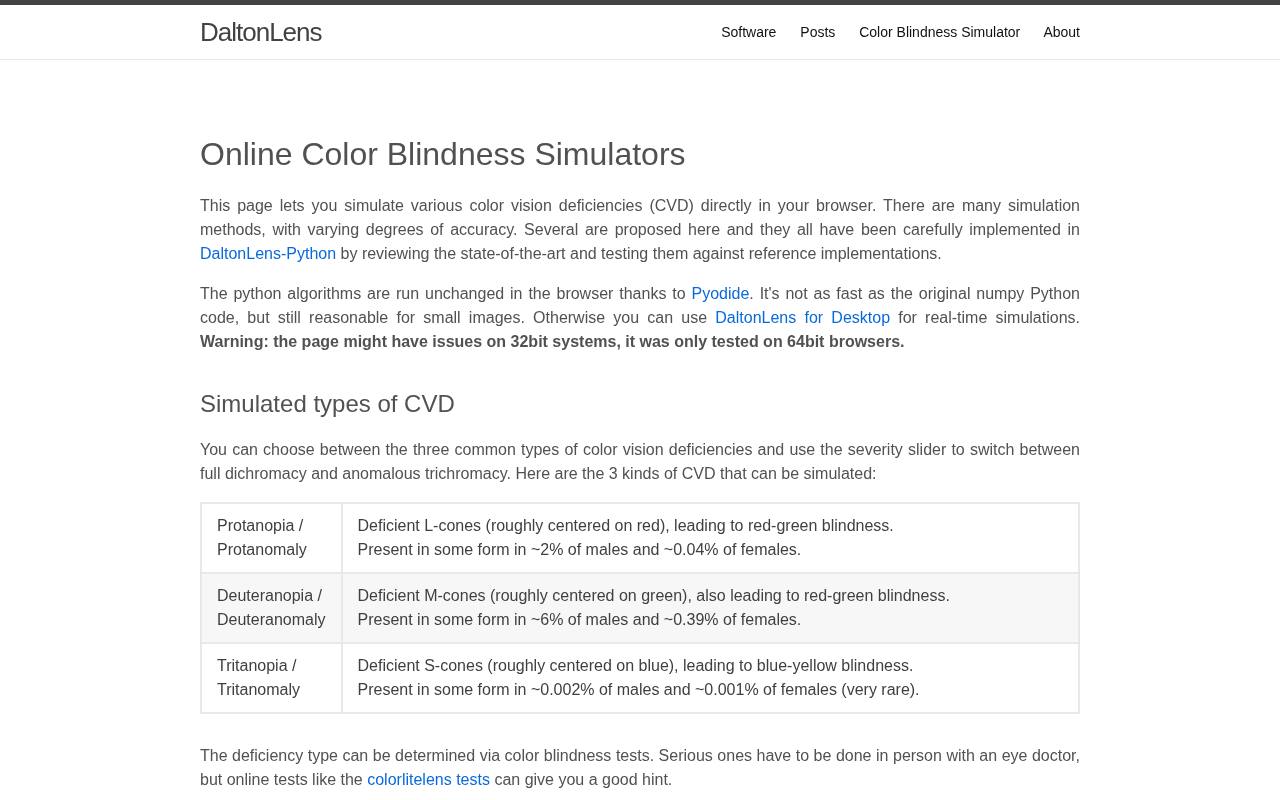
DaltonLens makes the underlying simulation methods unusually visible. Its free browser tool offers Brettel, Viénot, Machado, and other implementations, alongside explanations of their strengths and limitations. Load a sample or your own image, select a method, and compare protan, deutan, and tritan views with the original.
A severity slider helps explore intermediate results, although the page explains that not every method models partial deficiencies equally. Large uploads are reduced to 800 pixels wide for responsiveness. Choose this resource when you want an informed comparison rather than an unexplained visual filter.
- Type
- Web app
- Best for
- Comparing simulation methods with adjustable deficiency severity
- License
- Free online tool; code has separate license terms
- Price
- 100% free
Coblis
Web app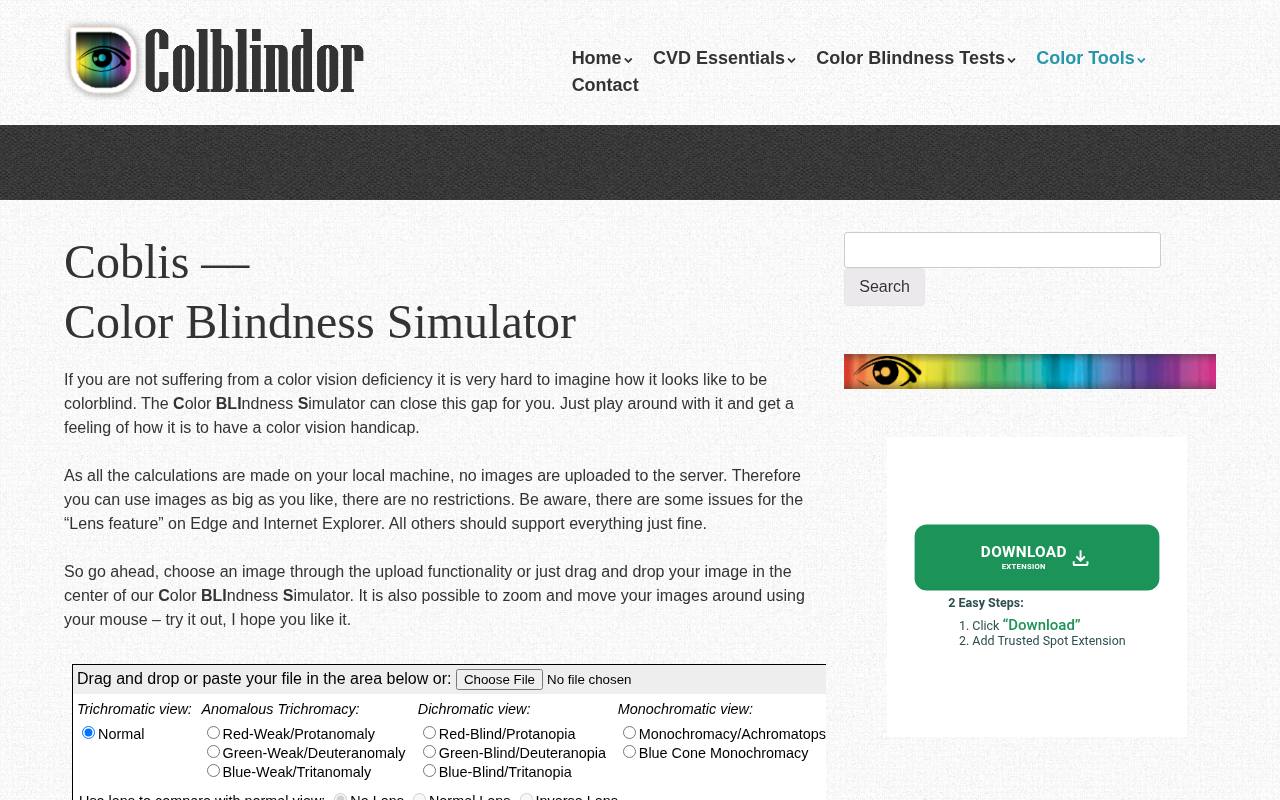
Coblis puts local image processing at the center of a straightforward browser workflow. Choose a file or drag an image into the simulator, then inspect it with the available color vision filters. The page also supports zooming and panning, helpful when a full interface screenshot contains small status indicators.
Its publisher states that images are not uploaded to a server. Use it for quick visual exploration, while remembering that its HCIRN-based simulation is not interchangeable with every research-based model. The underlying code’s noncommercial terms also deserve attention before any software reuse.
- Type
- Web app
- Best for
- Quick local image checks without server uploads
- License
- Free browser tool; underlying HCIRN code has noncommercial terms
- Price
- 100% free
Pilestone
Web app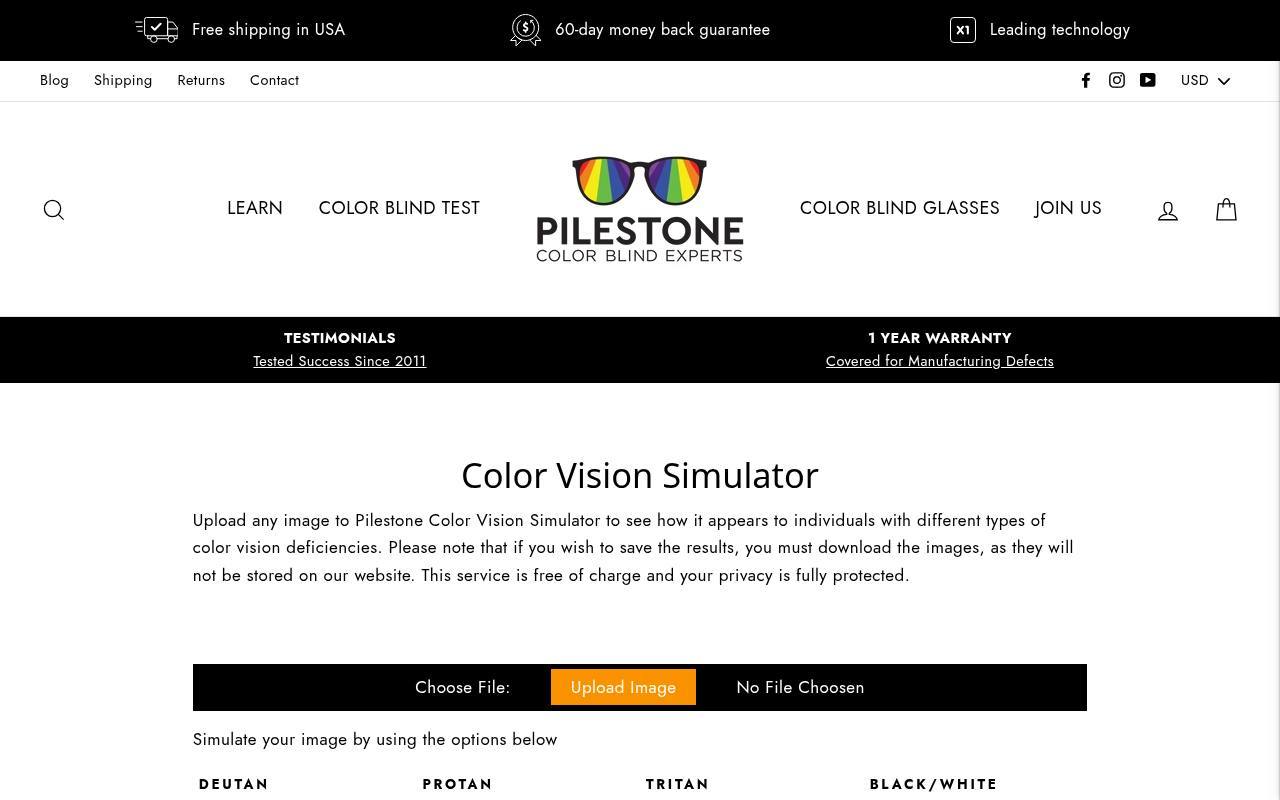
Pilestone offers a free image comparison tool within its color vision website. Upload a design image and use the simulation options to examine the original and simulated versions. This simple arrangement suits a focused review of a poster, illustration, or exported screen without installing a desktop application.
The page explicitly says that results are not stored on its website, so download your results if you need to keep them. Treat the simulator as a visual review aid; its availability does not establish that any related eyewear product is appropriate for a particular user.
- Type
- Web app
- Best for
- Comparing an uploaded image with its simulation
- License
- Free online simulator; website terms apply
- Price
- 100% free
Color Oracle
Desktop app
Color Oracle applies a full-screen color filter independently of the application displaying your work. That makes it useful for reviewing a layout in a desktop editor, a presentation, or a document without exporting individual assets. Its official repository links to free downloads for macOS, Windows, and Linux, and includes the source license.
Be aware of platform requirements: the project site lists Java for Windows and Linux and provides compatibility notes for macOS. The repository also cautions that highly saturated colors may not simulate well, so investigate ambiguous results with another method.
- Type
- Desktop app
- Best for
- Reviewing desktop artwork across different design applications
- License
- Free; repository includes MIT license terms
- Price
- 100% free
Sim Daltonism
Mac and iOS app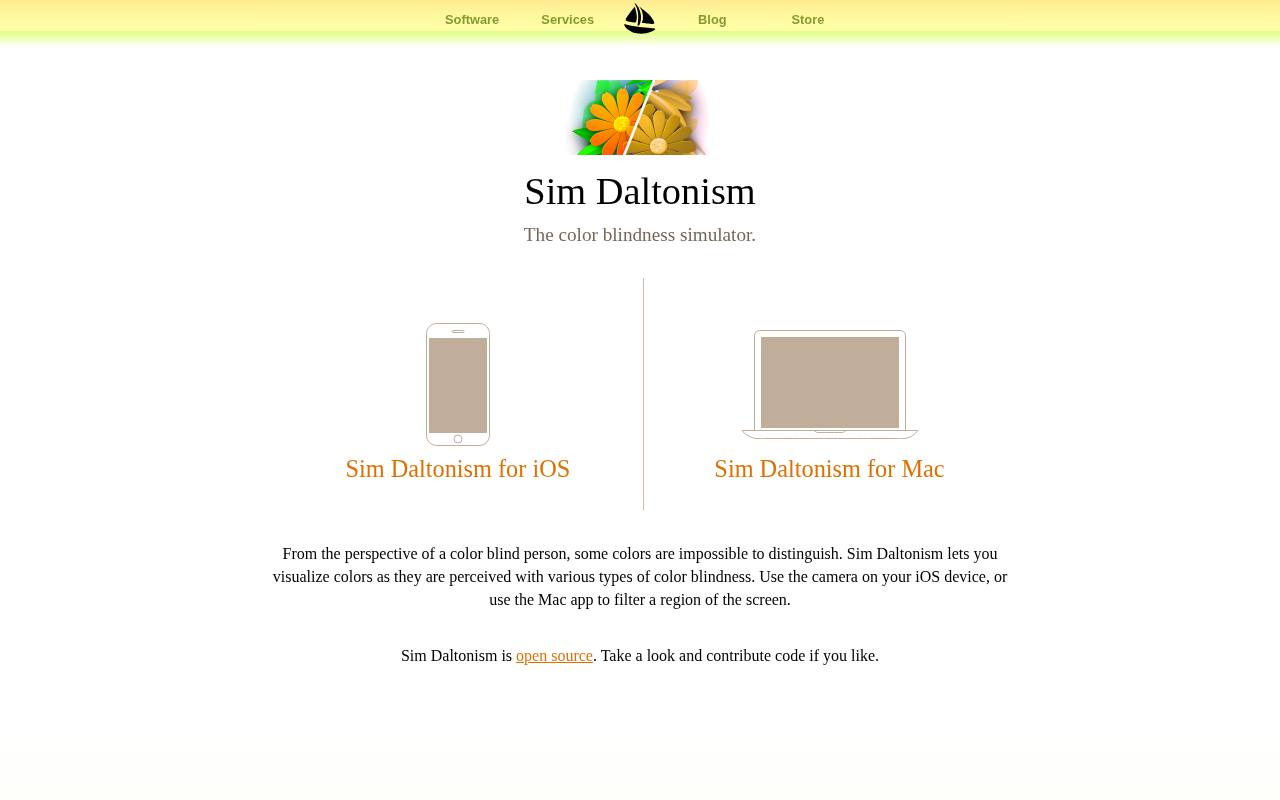
Sim Daltonism provides a floating filter window on the Mac, letting you examine the screen content underneath while working in another application. Its iOS counterpart uses the camera for a filtered view of the surrounding environment.
Both approaches reduce the friction of checking work repeatedly instead of waiting for an export at the end. The developer distributes the software free and publishes its source. For developers considering reuse, component licensing matters: the repository lists Apache terms for the application alongside additional terms for the included color blindness algorithm.
- Type
- Mac and iOS app
- Best for
- Watching screen regions while adjusting a design
- License
- Free and open source; Apache 2.0 plus algorithm-specific terms
- Price
- 100% free
Chromatic Vision Simulator
iPhone and iPad app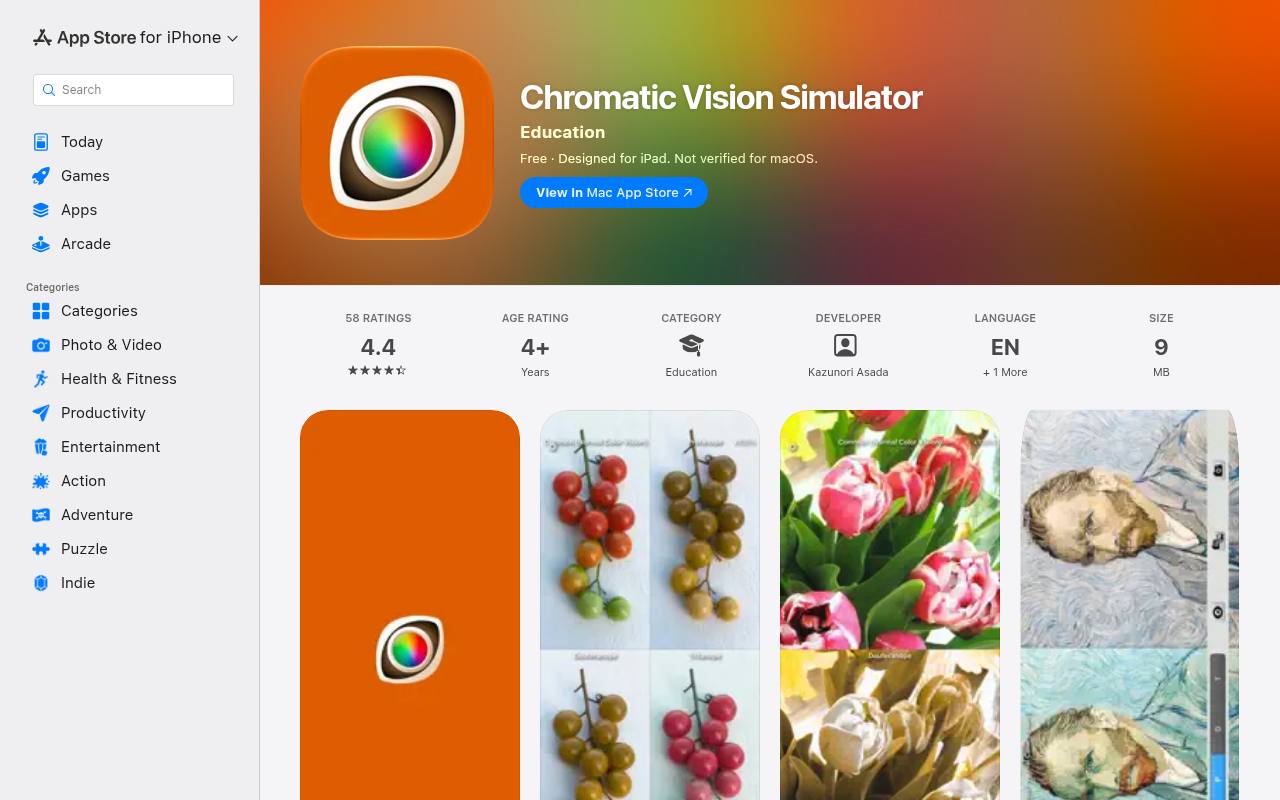
Chromatic Vision Simulator brings camera-based simulation to iPhone and iPad, with support for images from Photos as well. Its App Store listing describes normal, protan, deutan, and tritan views, with the screen divisible into as many as four comparison areas.
You can adjust simulation strength and switch between appearance and difference modes. That makes side-by-side viewing useful for reviewing packaging, classroom materials, or signage with colleagues. Because a camera mediates the image, lighting, exposure, and white balance can change what you see; confirm concerns against the actual artwork too.
- Type
- iPhone and iPad app
- Best for
- Inspecting printed designs through a phone camera
- License
- Free app; App Store terms apply
- Price
- 100% free
Chrome DevTools
Built-in browser tool
Chrome DevTools includes vision deficiency emulation in its Rendering panel, so website testing does not require a separate extension. Open Developer Tools, locate Rendering through the command menu or More tools, and find the emulation selector. Available views include protanopia, deuteranopia, tritanopia, and achromatopsia, alongside a separate blurred-vision option.
The main advantage is live page inspection: open menus, trigger validation errors, and examine selected states in context. This is a rendering aid for the current page, not a replacement for task testing or a report that certifies accessibility compliance.
- Type
- Built-in browser tool
- Best for
- Checking interactive website states during front-end development
- License
- Free browser feature; Chrome terms apply
- Price
- 100% free
Firefox Developer Tools
Built-in browser tool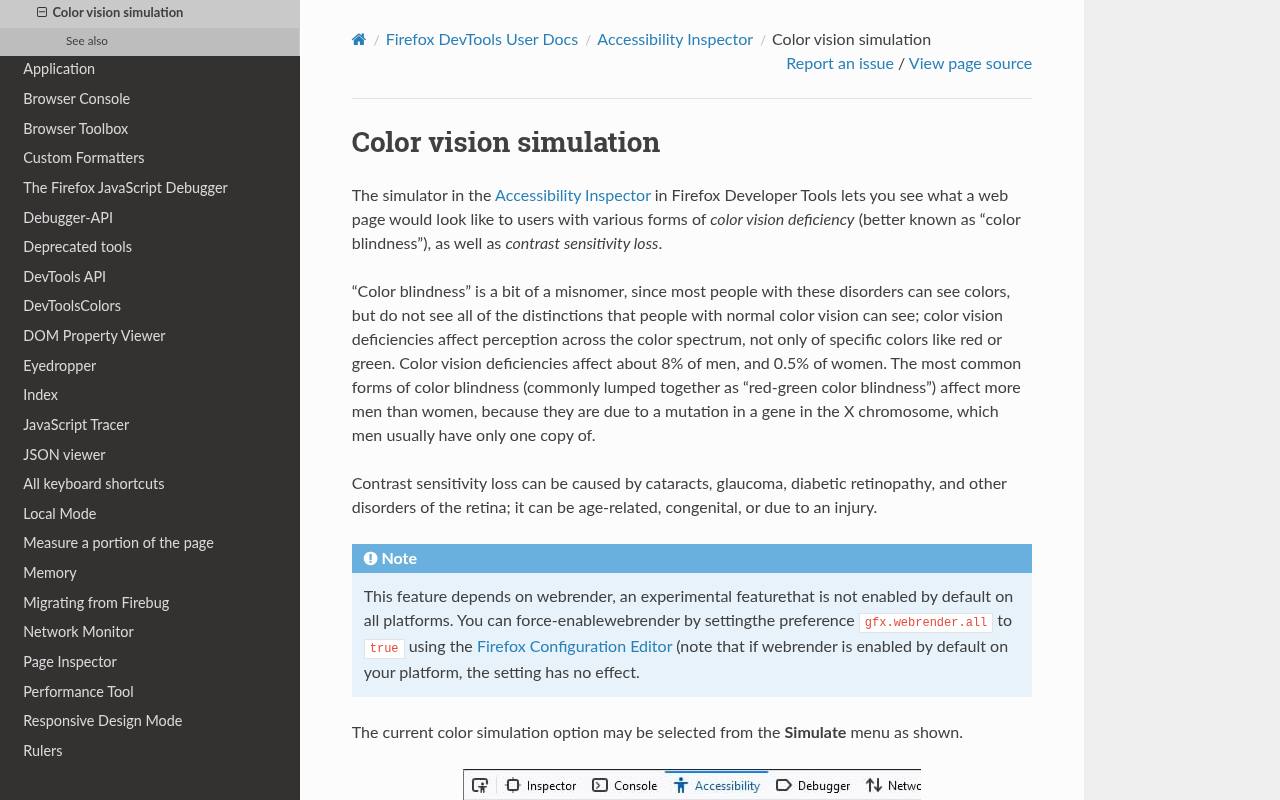
Firefox Developer Tools places color vision simulation inside the Accessibility Inspector. Its Simulate menu includes protanopia, deuteranopia, tritanopia, achromatopsia, and a separate contrast-loss view. This keeps visual inspection close to other accessibility development work without requiring an uploaded screenshot.
Use it to revisit the same interaction across several views and check whether labels still identify what changed. The documentation notes a rendering dependency on WebRender, so consult the platform notes if the feature is unavailable. Keep contrast-loss observations separate from conclusions about color vision deficiency itself.
- Type
- Built-in browser tool
- Best for
- Reviewing color perception in Firefox page layouts
- License
- Free browser feature; Mozilla licensing and terms apply
- Price
- 100% free
RGBlind
JavaScript and SVG toolkit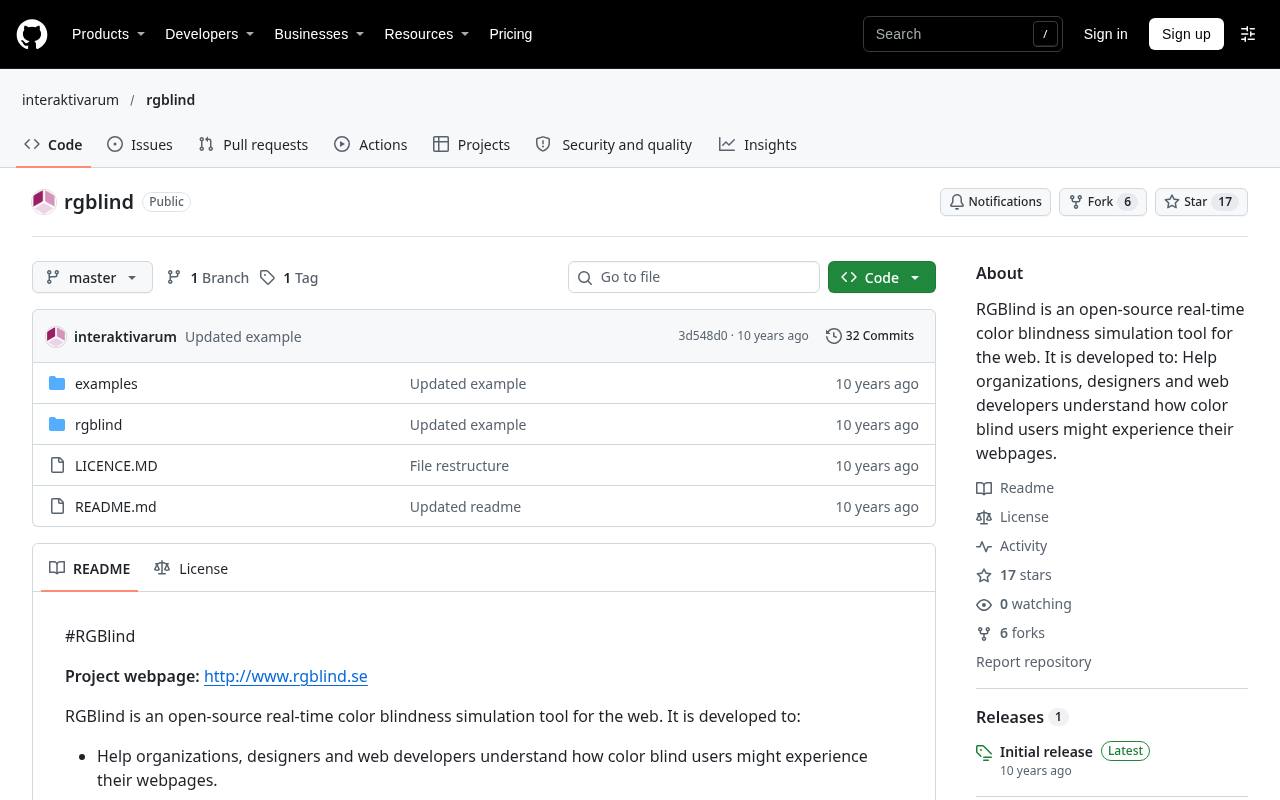
RGBlind is a downloadable web simulation toolkit for teams comfortable editing a prototype. Its official repository provides JavaScript, CSS, and SVG files, with instructions for including the script in a page and applying simulation classes to elements. The documented protanopia and deuteranopia classes focus on red-green deficiencies rather than a comprehensive set of visual conditions.
This makes element-level filtering useful for a teaching example or an internal component demonstration. Review the repository’s license before redistributing code, and test behavior in your target browser rather than assuming this older toolkit supports every modern rendering feature.
- Type
- JavaScript and SVG toolkit
- Best for
- Adding red-green simulation to a development prototype
- License
- Free open-source toolkit; review repository license before redistribution
- Price
- 100% free
Toptal Colorblind Web Page Filter
Web page filter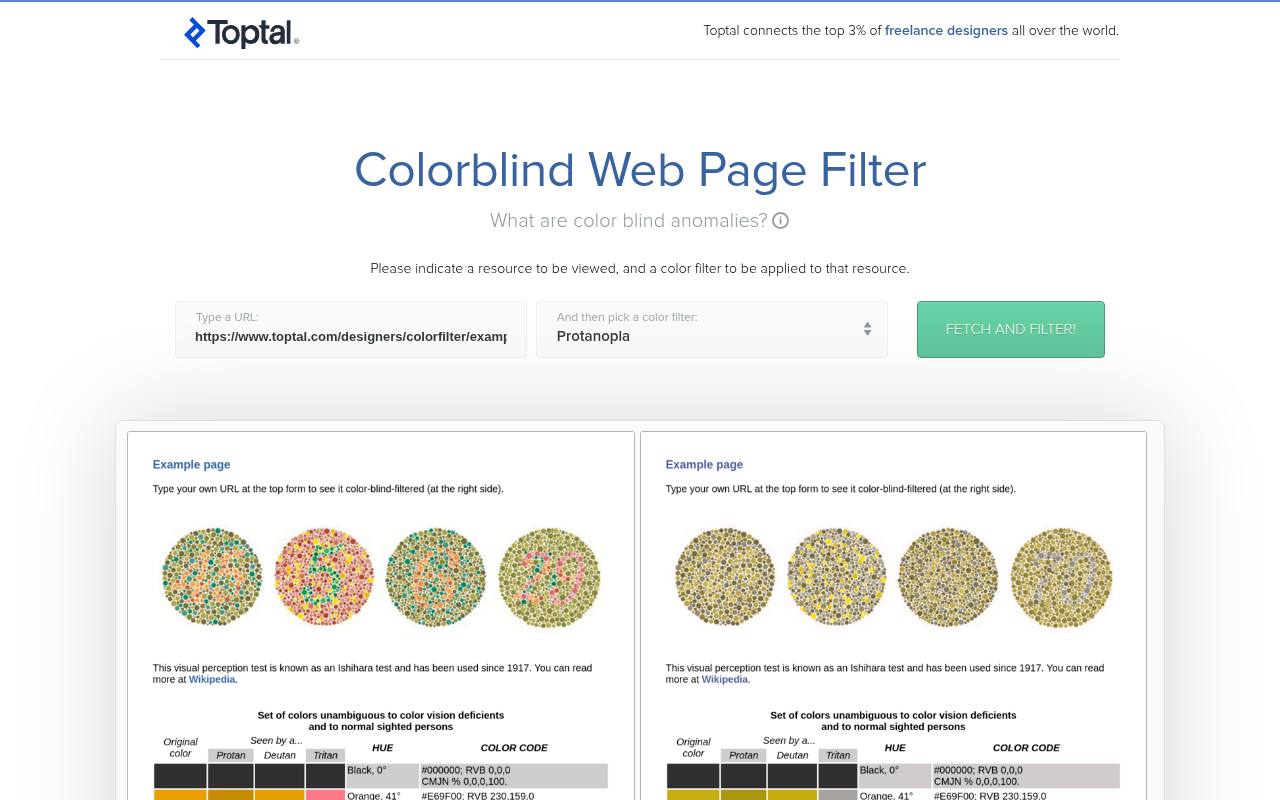
Toptal’s Colorblind Web Page Filter uses a URL-based workflow: provide a resource address and select a filter instead of uploading a static image. The page discusses filtering HTML, stylesheets, and images, including the extra processing involved with image content.
It also acknowledges limitations and recommends a grayscale pass to expose areas the filter cannot process. Consider it a secondary inspection option for straightforward public pages. For authenticated applications, heavily scripted interfaces, or stateful interactions, built-in browser simulation is generally a more practical starting point than an external page-processing service.
- Type
- Web page filter
- Best for
- Exploring filtered versions of publicly accessible webpages
- License
- Free online filter; website terms apply
- Price
- 100% free
How to choose a simulator for your workflow
Match the testing surface first. Image tools suit exported screens and marketing artwork; desktop filters cover applications without dedicated simulation controls; browser tools reveal interactive states. Camera apps extend the review to physical objects.
For deeper investigation, prefer a tool that identifies its algorithm and explains limitations. You rarely need all ten resources: one everyday option and one independent comparison method are a sensible starting combination.
Understand the simulation labels
Protan and deutan simulations address different forms of red-green color vision deficiency, while tritan simulations address blue-yellow differences. Complete and partial deficiencies are not identical, and a severity control does not make every model equally accurate.
Achromatopsia or grayscale views can reveal hue-dependent communication, but they do not stand in for every condition. Record the selected mode rather than describing a screenshot only as “the colorblind version.”
Test tasks rather than attractive screenshots
Build a short task-based checklist around the decisions your design asks readers to make. Can someone find the overdue invoice, distinguish selected from unselected tabs, or identify which field needs correction?
Review error, hover, focus, disabled, and success states, not just the default screen. A simulation becomes useful when it exposes a specific ambiguity that the team can reproduce, discuss, and repair in the source design.
Fix missing meaning with redundant signals
When two states merge visually, add redundant visual cues before reaching for a different hue. Pair status dots with words, underline links, give selected controls a distinct border, and label information directly where practical.
Patterns and shapes can distinguish areas that otherwise differ only by fill color. Preserve a clear hierarchy so these additions improve comprehension without turning every component into a competing collection of symbols.
Keep image handling and privacy explicit
Before opening confidential work in a web service, check its image processing policy. A file chooser does not tell you whether processing happens locally or on a server. Coblis explicitly describes local calculations; other tools require their own review.
For uncertain cases, use an approved local workflow or a sanitized example. Keep the original file separately, and avoid circulating simulated images as if they were editable production assets.
Separate free use from code redistribution
A free simulator is not automatically a source of unrestricted code. Using an online tool, installing an application, and embedding its algorithm in a commercial product are different activities with different terms.
Read the relevant license before copying scripts or shipping a modified build, especially when an application bundles third-party components. Simulation also leaves the rights in the uploaded photograph, illustration, or client artwork unchanged.
Document findings without claiming certification
Create a compact review record containing the tool, simulation mode, screen or component, task, and observed problem. Save an original reference alongside any permitted simulation capture, then repeat the task after the fix.
These records support design decisions, but visual simulation alone cannot establish accessibility compliance. Numerical contrast assessment, keyboard operation, assistive technology behavior, and content clarity remain separate checks outside this simulator-focused selection.
Can a simulator replace feedback from users?
No. Individual color perception varies, and models simplify it. Someone may distinguish a particular combination in one setting and struggle in another, especially when marks are small or viewing conditions change.
Invite people with color vision deficiencies to attempt representative tasks rather than asking only whether colors look acceptable. Use their feedback to refine labels, interaction states, and information structure, with simulation supporting that work rather than overruling lived experience.