
A convincing paper grain or expressive ink stroke can give your work character without a complicated workflow. Free textures and brushes help you build that character into illustrations, posters, digital paintings and 3D scenes.
The important part is choosing resources that suit your software, your output size and the way you are allowed to use them.
This selection brings together specialist material libraries, established design communities and working artists who share their tools.
You will find free Procreate brushes, free Photoshop brushes, free Krita brushes and free PBR textures, rather than ten versions of the same download directory. Some sources are entirely free; others mix free downloads with paid products or account restrictions.
Below, you can compare what each source does best before downloading. Remember that a texture photograph is not automatically a seamless material, and a brush preview is not proof that the file works in your app. Check the actual download format and its licence, then test a small selection in a real project.
Quick picks at a glance
| # | Resource | License | Best for |
|---|---|---|---|
| 1 | Poly Haven Textures | CC0 | Realistic materials for 3D scenes |
| 2 | ambientCG | CC0 1.0 | Building a reusable material library |
| 3 | Texturelabs | Free commercial use; redistribution restricted | Grain, distress and graphic effects |
| 4 | Textures.com | Custom licence; check permitted uses | Finding specific real-world surfaces |
| 5 | Brusheezy | Varies; free files often require attribution | Decorative stamps and textured effects |
| 6 | Krita Resources | Varies by creator and pack | Expanding an open-source painting setup |
| 7 | Procreate Folio Resources | Varies by creator; check each download | Discovering artist-made iPad tools |
| 8 | GrutBrushes | Commercial artwork allowed; no file resale | Trying expressive natural-media brushes |
| 9 | Unsplash Textures | Unsplash licence for free images | Organic backgrounds and surface references |
| 10 | David Revoy | Open licences; check the individual resource | Illustration tools with workflow guidance |
Poly Haven Textures
PBR textures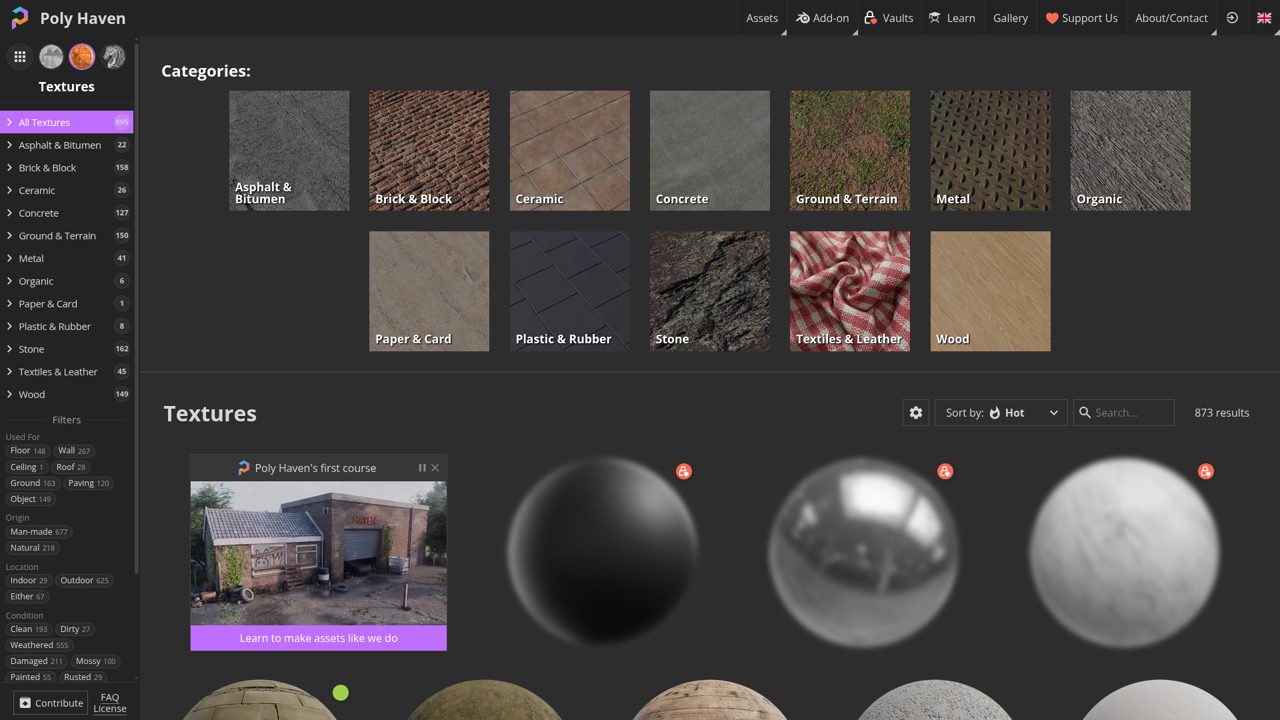
Browse Poly Haven’s free material library for surfaces such as cobblestone, asphalt, wood, and ground textures rather than flat decorative backgrounds. The Textures section sits alongside the site’s HDRIs and Models libraries, giving environment artists separate sources for materials, lighting, and objects.
Its PBR textures are intended for realistic shader workflows, with downloadable maps for building materials in 3D software. Everything is released under CC0, so commercial use, modification, sharing, and even redistribution within products are allowed without attribution. Donations support the library, but the assets themselves remain free rather than requiring a paid commercial license.
- Type
- PBR textures
- Best for
- Realistic materials for 3D scenes
- License
- CC0
- Price
- 100% free
ambientCG
PBR materials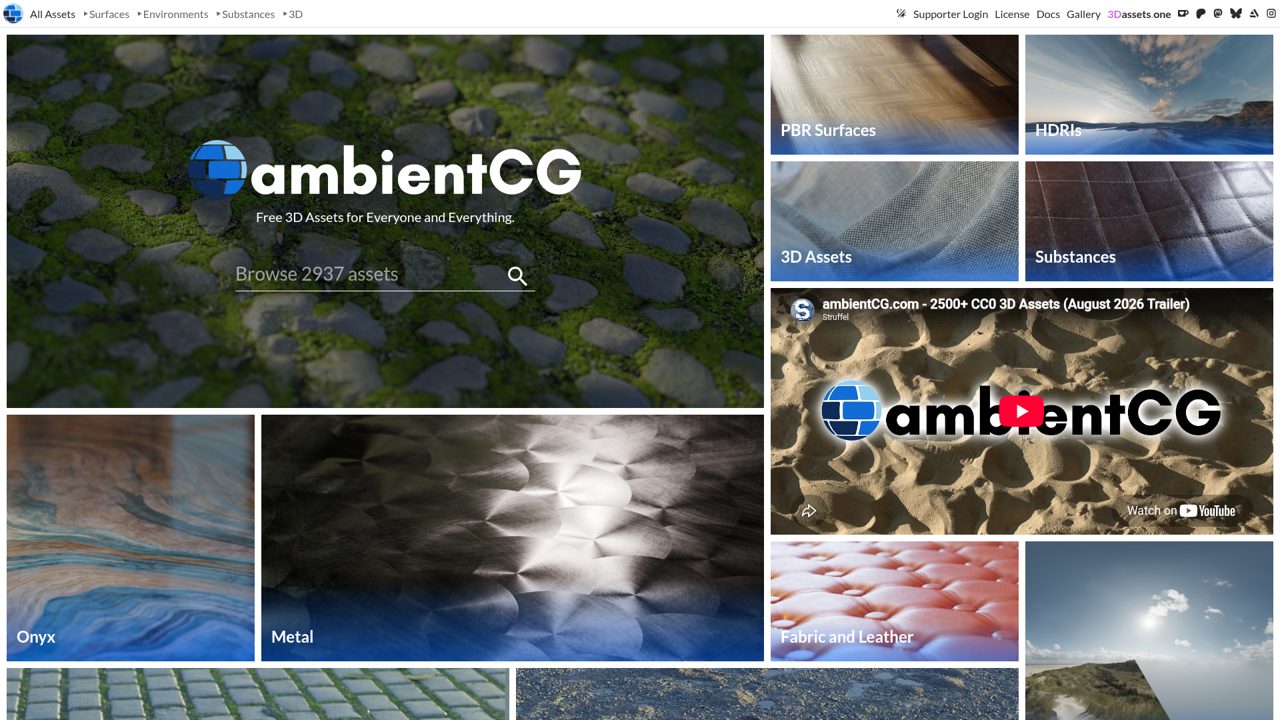
Materials are only one part of ambientCG’s free collection: its main navigation separates PBR Surfaces, HDRIs, Substances, and 3D Assets. Surface categories include metal, fabric and leather, paving stones, ground and sand, rocks, tiles, and ice and snow.
Curated collections include scans and HDRIs from the island of Borkum, while a gallery and documentation section provide additional context. The library uses CC0 1.0, covering commercial projects and allowing copying, modification, and redistribution without asking permission. Attribution is optional, including when you use assets in work that will be sold or shared with collaborators.
- Type
- PBR materials
- Best for
- Building a reusable material library
- License
- CC0 1.0
- Price
- 100% free
Texturelabs
Photo textures and tutorials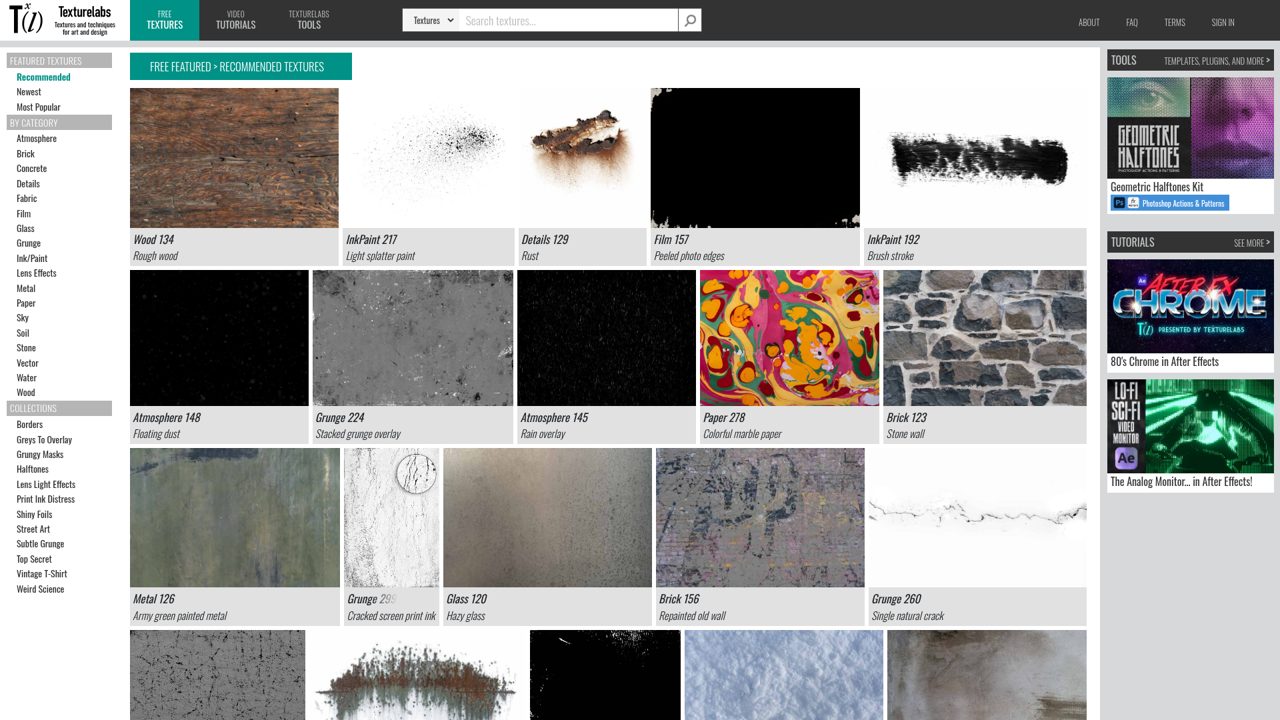
Photographic overlays and practical effects share the spotlight at Texturelabs, where Featured Textures, category browsing, and collections organize the free library. Examples include floating dust, rain, cracked screen-print ink, marbled paper, hazy glass, rust, and peeled photo edges. Downloads offer JPG and PNG files in several sizes, with extra-large versions available for some textures.
Tutorials cover Photoshop and After Effects, while paid tools include actions, patterns, and bulk or lossless downloads. Commercial use needs no credit, but the terms prohibit redistributing resources, selling texture packs, or including them in design templates and stock 3D models.
- Type
- Photo textures and tutorials
- Best for
- Grain, distress and graphic effects
- License
- Free commercial use; redistribution restricted
- Price
- Free textures + paid tools
Textures.com
Photo textures and materials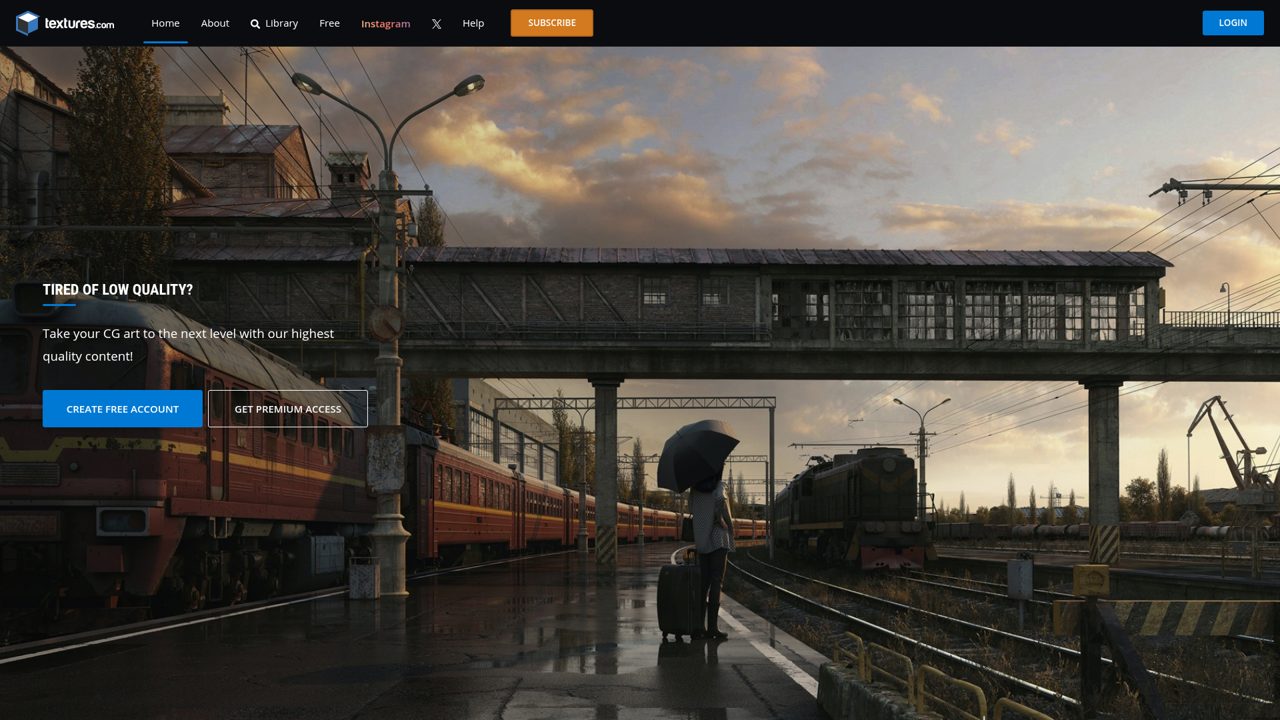
Beyond surface photography, Textures.com highlights 3D Foliage, procedural PBR materials, and 3D ornaments spanning styles from antique to Art Deco. The procedural materials provide adjustable parameters rather than only fixed photographs. A free account is offered alongside premium access; the FAQ states that users can download up to 15 images free each day, with subscriptions providing more or larger images.
Its custom license permits uses including games, films, print, and unique website designs without royalties. Standalone redistribution is prohibited, including competing texture packs and materials made from its images; bundling textures with a 3D model or scene is permitted.
- Type
- Photo textures and materials
- Best for
- Finding specific real-world surfaces
- License
- Custom licence; check permitted uses
- Price
- Free access + paid options
Brusheezy
Photoshop brushes and textures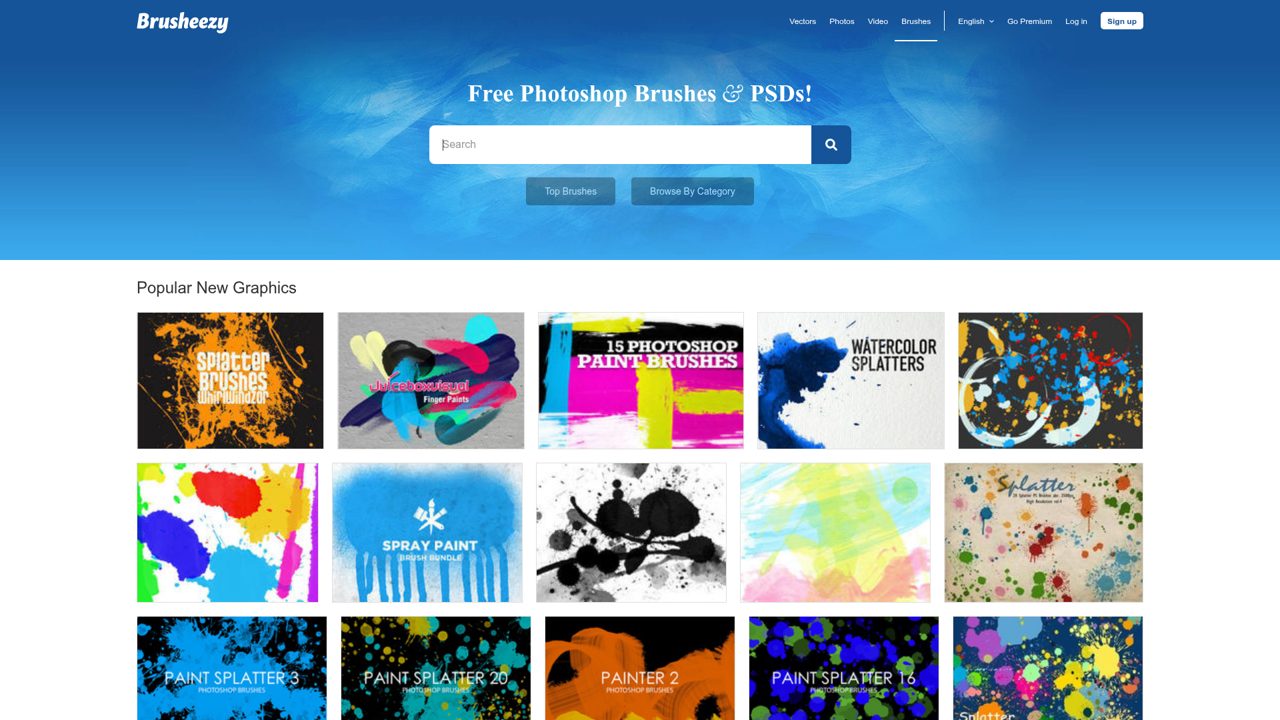
Paint splatters, high-resolution paint strokes, floral fabric, and tartan brushes are among the downloads featured on Brusheezy’s homepage. The library combines Photoshop brushes and PSDs with textures and other graphics, arranged into Popular New Graphics, New Graphics, and Team Favorites, plus a community-member section.
Free files appear alongside premium offers rather than forming an entirely free catalog. Licensing varies by contribution, and free downloads often carry an attribution requirement. This makes Brusheezy a source of individually licensed packs, not a single public-domain brush collection; premium access is marketed separately for users who want its paid graphics.
- Type
- Photoshop brushes and textures
- Best for
- Decorative stamps and textured effects
- License
- Varies; free files often require attribution
- Price
- Free + premium
Krita Resources
Krita brushes and bundles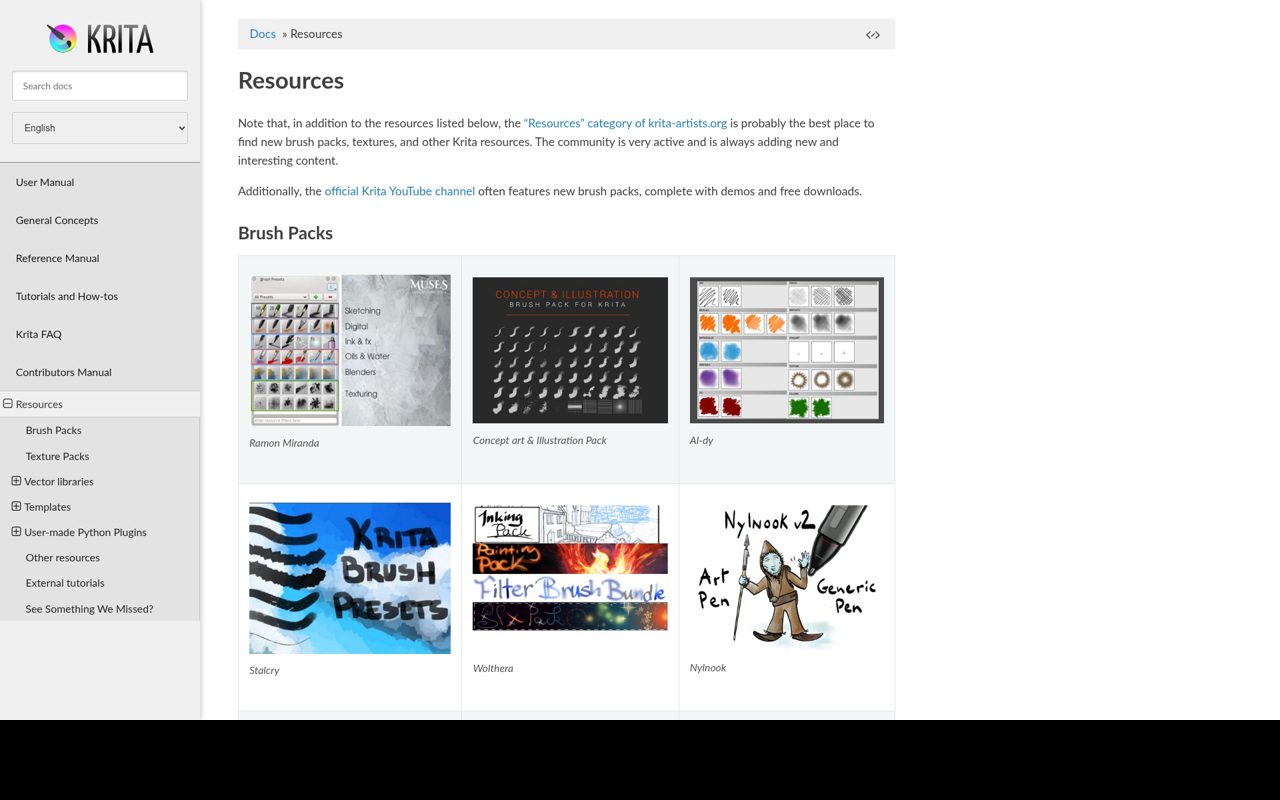
Krita’s official directory goes well beyond brushes, dividing its recommendations into Brush Packs, Texture Packs, Vector libraries, Templates, user-made Python plugins, and external tutorials. Listed brush creators include Raghukamath, GDQuest, and IForce73. Vector resources include symbol-library packs, composition templates, and Feather icons, while the templates section includes a storyboard layout.
Python plugins are grouped by usability, workflow improvements, file management, color selectors, interface, and miscellaneous functions. Many linked resources are free, but this is a directory of outside creators rather than one downloadable bundle: licenses vary by pack, and some external resources offer paid options.
- Type
- Krita brushes and bundles
- Best for
- Expanding an open-source painting setup
- License
- Varies by creator and pack
- Price
- Free resources; some external paid options
Procreate Folio Resources
Procreate brushes and palettes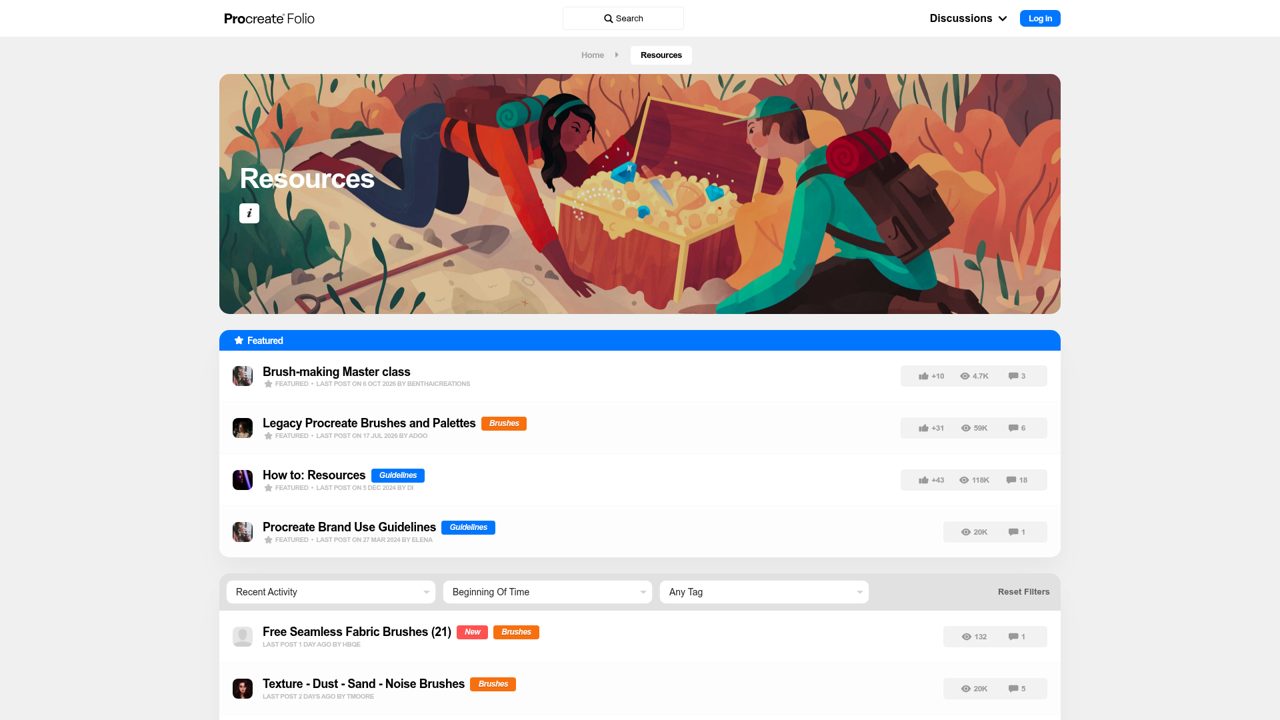
Artist discussions drive Procreate Folio’s Resources area, where downloadable tools appear as community posts with replies, activity dates, and tags. Featured threads include Legacy Procreate Brushes and Palettes, a brush-making master class, resource-posting guidance, and brand-use guidelines. The feed includes free embroidery and seamless fabric brushes, leather and gold effects, pencil sets, color swatches, and manga drawing grids.
Filters cover recent activity, time range, and tags, so the directory functions more like a searchable forum than a storefront. Creator-specific terms apply to downloads; the community does not provide one blanket commercial license for every shared brush or palette.
- Type
- Procreate brushes and palettes
- Best for
- Discovering artist-made iPad tools
- License
- Varies by creator; check each download
- Price
- Many free community resources
GrutBrushes
Painterly Photoshop brushes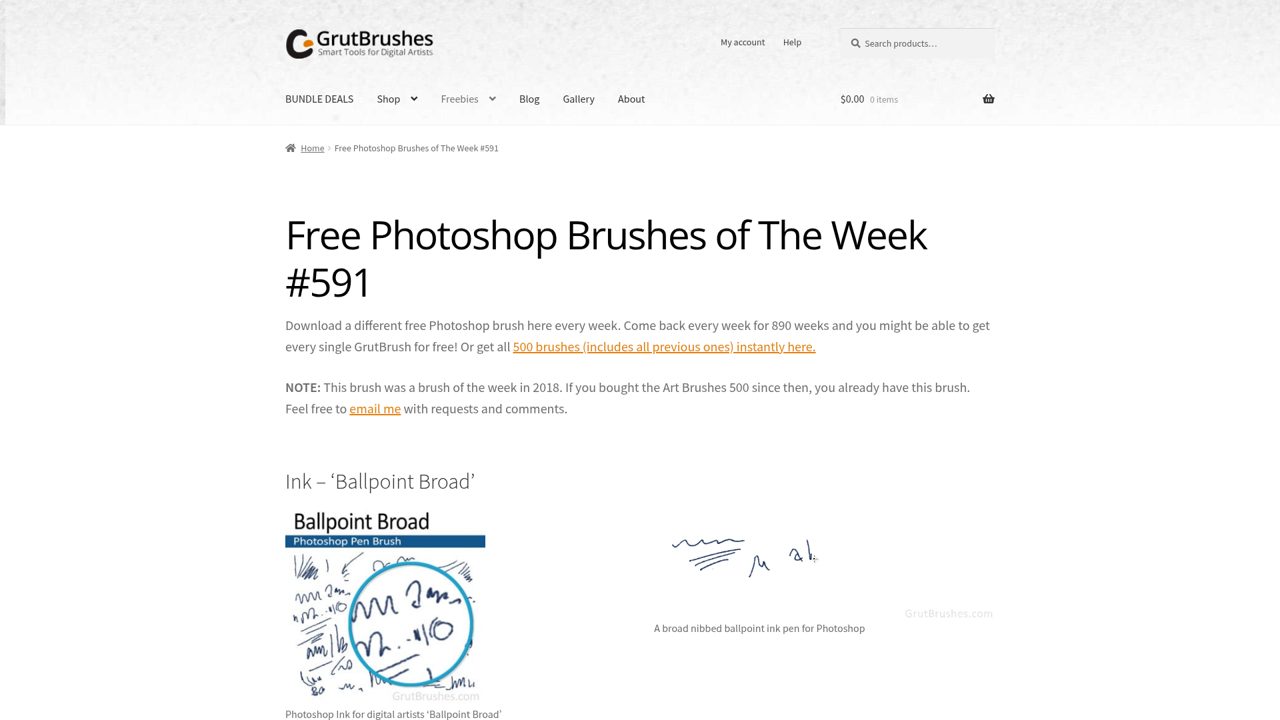
A rotating free brush of the week anchors GrutBrushes’ sample page, with a brush preview and installation instructions rather than a permanent giveaway of the complete commercial collection. The page provides ABR and TPL installation guidance and identifies compatibility with desktop Photoshop CS5 through CC, plus Artstudio Pro and Adobe Fresco on iPad with a pressure-sensitive stylus.
Additional freebies include lightsaber brushes, while the paid Art Brushes 500 collection offers immediate access to a larger set. The brushes may be used for commercial artwork, but the brush files themselves cannot be resold as your own products.
- Type
- Painterly Photoshop brushes
- Best for
- Trying expressive natural-media brushes
- License
- Commercial artwork allowed; no file resale
- Price
- Free samples + premium
Unsplash Textures
Photographic textures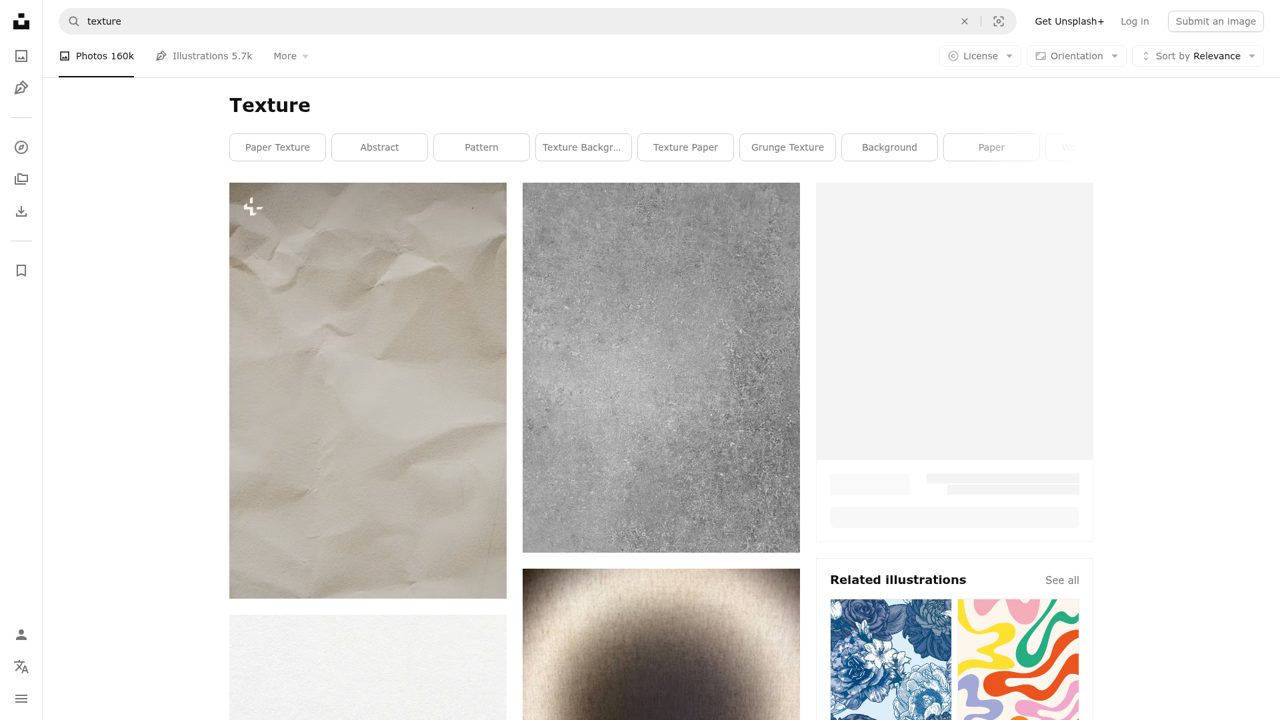
Texture searches on Unsplash return photographs rather than coordinated PBR material maps or Photoshop brush packs. The texture photo feed brings together surface details and backgrounds from individual contributors, with the site’s Unsplash+ content sitting alongside free images.
Free photographs use the Unsplash License, which allows downloading, copying, modifying, and using images for commercial or noncommercial purposes without permission or required credit. That license does not permit selling images without significant modification or compiling them into a competing image service. Unsplash+ is a separate paid offering, so the free-image license does not describe every result in the catalog.
- Type
- Photographic textures
- Best for
- Organic backgrounds and surface references
- License
- Unsplash licence for free images
- Price
- Free images + Unsplash+
David Revoy
Krita brushes and tutorials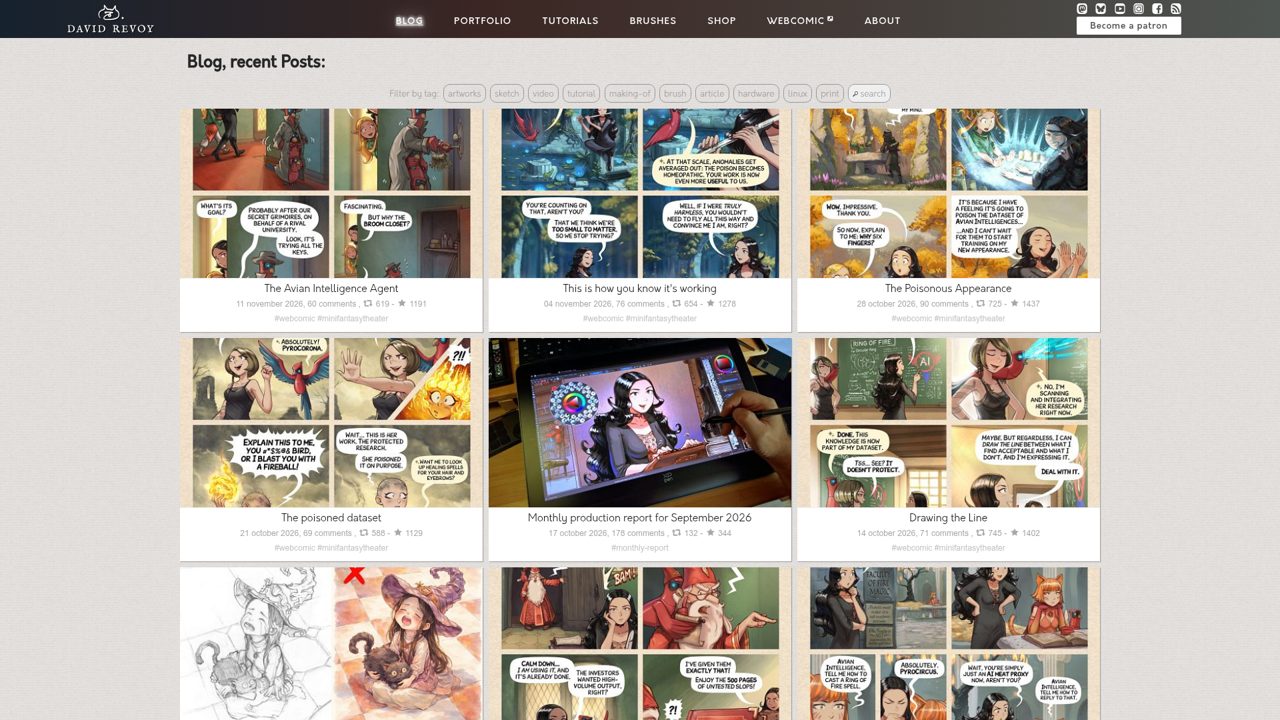
Open-source painting workflows shape David Revoy’s site, which combines artwork, tutorials, brush resources, and updates about his comics and creative process. The free resource downloads are particularly relevant to Krita brushes and digital painting rather than a general stock-texture catalog. Readers can move between practical tool resources and explanations of how Revoy develops his own artwork.
Licensing is resource-specific, not one blanket permission covering everything on the domain. That distinction matters here because the site also publishes art, stories, and comics under separate terms, and its recent posts discuss changes to those terms. Optional support accompanies the free downloads.
- Type
- Krita brushes and tutorials
- Best for
- Illustration tools with workflow guidance
- License
- Open licences; check the individual resource
- Price
- 100% free resource downloads; optional support
How to choose free textures and brushes
Start with the job you need the resource to do. For a poster, a flat paper photograph may be enough. For a close-up 3D render, you probably need a coordinated set of material maps.
For drawing, decide whether you need a continuous painting brush, a blender or a stamp. These categories can look similar in previews while behaving very differently in use.
Next, check compatibility and working size. A tiny texture may look fine on a phone but soften noticeably across a printed spread. A sophisticated brush may depend on pressure input or a particular application version.
Download one or two free resources first, test them at your intended output size, and only then build a larger collection around the tools you actually enjoy.
PBR texture maps explained without the jargon
A PBR material uses several images to describe how a surface responds to light. The base colour, sometimes called albedo, supplies colour without painted-in lighting.
A roughness map controls whether reflections appear sharp or scattered. A normal map changes the apparent direction of small surface details, helping flat geometry look more intricate without adding every bump to the model.
A height map describes elevation and can drive bump or displacement, depending on your software and settings. Metallic maps identify metallic regions, while ambient occlusion maps describe local crevices and contact shading.
Not every material needs every map. Follow your renderer’s colour-space guidance and normal-map convention; an incorrectly configured free material can look wrong even when the source files are excellent.
Brush formats: .brushset, .abr and .kpp
Procreate commonly uses .brush for individual brushes and .brushset for collections. Photoshop brush presets are usually supplied as .abr files. Krita uses .kpp presets and often distributes collections as .bundle resource libraries.
A ZIP file is only a container: extract it when necessary and inspect the contents before deciding which import command you need. Keep any included instructions and licence files.
Do not assume that importing a format recreates its original behaviour perfectly. Procreate can import Photoshop brushes, but brush engines differ, so results may need adjustment.
Likewise, compatibility with an ABR file does not guarantee identical blending or pressure response in another application. Draw a test sheet of light strokes, firm strokes, dots and broad marks before committing imported brushes to an illustration.
Installing brushes in Procreate and Photoshop
In Procreate, save the downloaded brush file to the Files app and extract the archive if needed. Open a canvas, open the Brush Library, then use its add and import controls to select your .brush or .brushset file.
You can also open supported brush files from Files in Procreate. Check the imported collection, then test it on a separate layer before changing its settings.
In desktop Photoshop, download and extract the brush pack, then open the Brushes panel through the Window menu. Open the panel menu, choose Import Brushes and select the .abr file.
Expand the imported group and try a preset with the Brush tool. If a download will not import, check the required Photoshop version and make sure you selected the brush file rather than its ZIP archive.
Making textures tile without obvious seams
If you need a repeating background, choose an asset explicitly described as seamless or tileable. A pleasing surface photograph is not automatically suitable: bright corners, perspective and strong directional light can reveal every repeat.
Preview several tiles together rather than inspecting only one image. A distinctive crack or knot may become distracting when it appears across an entire wall or webpage.
For your own edits, an offset filter can move the edges into the centre so you can repair visible joins with cloning or healing. Work non-destructively and inspect the result at multiple scales.
With PBR textures, make corresponding edits across the relevant maps; fixing only the colour image can leave mismatched bumps or reflections. Save a separate working copy so your original downloads remain intact.
Licensing free resources in plain language
Free describes the download cost, not the full set of permissions. CC0 assets offer broad reuse without required attribution, while custom licences may allow commercial artwork but prohibit sharing the underlying files.
Attribution licences require credit in the form their terms specify. Personal-use permissions are not a safe substitute for commercial permission when you are preparing paid client work or products for sale.
Keep the licence text, source address and download date with each resource. Pay particular attention when creating templates, stock assets, brush packs or products that other people can edit: these uses may redistribute the original material.
Texturelabs and Textures.com, for example, are not interchangeable with a CC0 library. If the wording does not clearly cover your plan, ask the creator or choose a more permissive source.
Frequently asked questions
Can you use free brushes for commercial artwork? Often you can, but permission comes from the individual licence, not the word free.
A creator may allow you to sell a finished illustration while forbidding redistribution of the brush itself. Check whether attribution is required and whether merchandise, stock submissions or editable client files have separate conditions before starting a commercial project.
Are free textures suitable for print? Yes, provided the source has enough usable detail for your final dimensions and the licence permits your project.
Judge sharpness at the intended print size rather than relying on the pixel count alone. Strong compression, aggressive enlargement and heavy sharpening can all spoil a surface that looked convincing as a small preview in your browser.
Why does a free brush look different from its preview? Brush size, canvas resolution, pressure curves, stylus behaviour and application settings all affect the result. The preview may also combine several layers or additional textures.
Test the brush with different pressures and zoom levels, read the creator’s notes, and duplicate the preset before making substantial changes so you can return to the original settings.